Install LogScale Archive on a Linux host, connect one read-only LogScale repository, and verify that scheduled query results are stored locally.
Goal
LogScale Archive runs on your Linux host at http://127.0.0.1:8080, connects to one LogScale repository with a read-only token, and stores the results of an activated query locally. I tested this path against a Linux x86_64 host with Docker Compose v2 and generic LogScale data.
Prerequisites
- Linux host on x86_64 / amd64; Windows and macOS are not production targets.
- Docker Engine and Docker Compose v2.
- Terminal access on that host.
- A LogScale repository and a repository-scoped API token with read/query permission only.
- A LogScale Archive release. Production uses its immutable image digest.
Check host and Docker before cloning the repository:
uname -m          # x86_64 or amd64
docker --version
docker compose version
Step 1 — Clone LogScale Archive
Clone the AGPL-3.0 project and move into its directory. Run every later command there.
git clone https://github.com/ITrunsDE/logscale-archive.git
cd logscale-archive
Step 2 — Create the configuration and secrets
Copy the supplied example file:
cp .env.example .env
Generate new values for ENCRYPTION_KEY, SESSION_SECRET, and RECOVERY_SECRET. Do not use example values. The encryption key must be exactly 64 hexadecimal characters; base64 output is not valid for this value.
openssl rand -hex 32
openssl rand -base64 32
openssl rand -base64 32
Open .env and set POSTGRES_PASSWORD, the three generated values, and an INSTANCE_NAME. Keep ENCRYPTION_KEY for the lifetime of the installation. Changing it after saving a LogScale connection makes the stored token unreadable.
For the bundled PostgreSQL container, add these values as well. Replace YOUR_POSTGRES_PASSWORD with the exact POSTGRES_PASSWORD value. URL-encode it in DATABASE_URL when it contains URL-reserved characters.
DATABASE_URL=postgres://archive:YOUR_POSTGRES_PASSWORD@postgres:5432/archive
REQUIRE_DB_TLS=false
SECURE_COOKIES=false
SECURE_COOKIES=false is correct only for local HTTP access. Set it to true when a reverse proxy terminates HTTPS.
Step 3 — Pin a release image
Open GitHub Releases, copy the sha256:… image digest from the release notes, then add it to .env:
ARCHIVE_IMAGE=ghcr.io/itrunsde/logscale-archive@sha256:PASTE_DIGEST
The registry path is lowercase. A pinned digest gives this install a repeatable image; it also avoids building production containers from the current checkout.
Step 4 — Start the bundled stack
Pull the pinned image and start web, worker, and PostgreSQL. PostgreSQL remains inside Docker; it has no host port.
docker compose --env-file .env \
  -f infra/compose.yaml \
  -f infra/compose.production.yaml \
  --profile bundled-db \
  pull web worker postgres

docker compose --env-file .env \
  -f infra/compose.yaml \
  -f infra/compose.production.yaml \
  --profile bundled-db \
  up -d --no-build
Migrations run when the web container starts. The three containers are logscale-archive-web-1, logscale-archive-worker-1, and logscale-archive-postgres-1.
Step 5 — Verify the installation
Run the health check on the Docker host:
curl -sf http://127.0.0.1:8080/healthz
Expected output:
{"ok":true,"role":"web"}
The test host also showed all three services as healthy:
logscale-archive-worker-1     Up (healthy)
logscale-archive-web-1        Up (healthy)
logscale-archive-postgres-1   Up (healthy)
If it does not return JSON, inspect status and recent web-container logs:
docker compose --env-file .env -f infra/compose.yaml -f infra/compose.production.yaml --profile bundled-db ps
docker compose --env-file .env -f infra/compose.yaml -f infra/compose.production.yaml --profile bundled-db logs web --tail 80
Step 6 — Create the first admin
Open http://127.0.0.1:8080 on the host and complete the first-admin form. Sign in with that account.
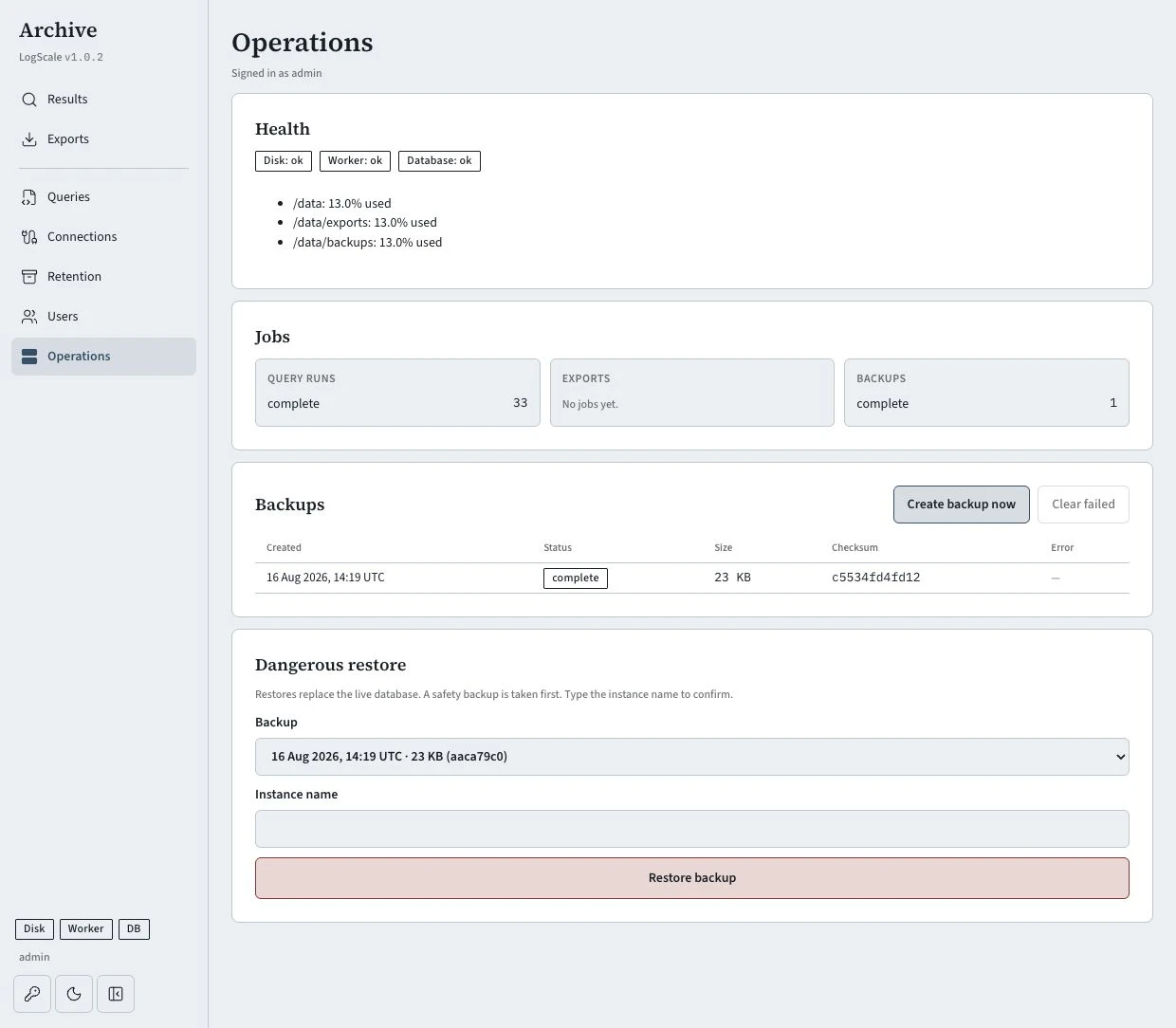
The UI listens on localhost by default. For remote access, use a VPN or an HTTPS reverse proxy that provides MFA. Do not expose port 8080 directly to the internet.
Step 7 — Connect one LogScale repository
In LogScale, create an API token scoped to the repository you want to archive. Give it read/query permissions only. Do not grant ingest, delete, or administration permissions.
In Archive, open Connections and select Add connection. Enter:
- Name: a local label, such as
generic-audit-data. - Endpoint: LogScale base URL, for example
https://cloud.community.humio.com; no/humioor/api/v1suffix. - Repository: exact repository name.
- Token: the read-only token.
Select Save connection. Archive validates reachability, repository access, and token permissions immediately. It encrypts the token; the UI never shows the value again.
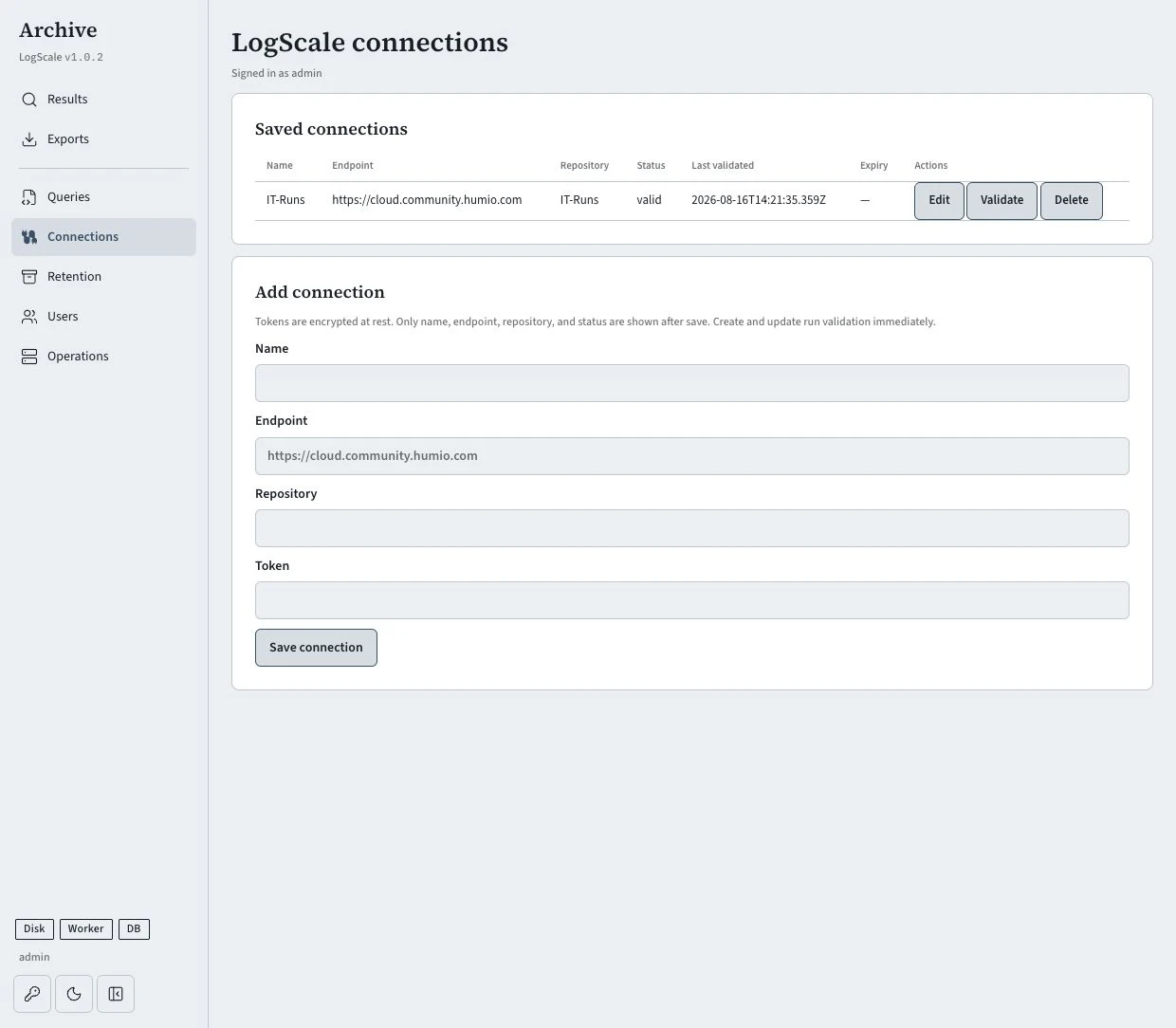
If validation fails, check the endpoint, repository spelling, and token expiry. A permission warning means the token has more scope than this application needs.
Step 8 — Test and activate the first archive query
Open Queries and create a query for the connection. Choose event mode when results include @id and #repo; this lets Archive deduplicate records. Do not add head() or a numeric tail() to an event query — Archive controls the result limit.
Set the schedule, timezone, correction window, and retention period under Schedule & retention. Save the draft, select its version, and run Test. Activate only after the test passes.
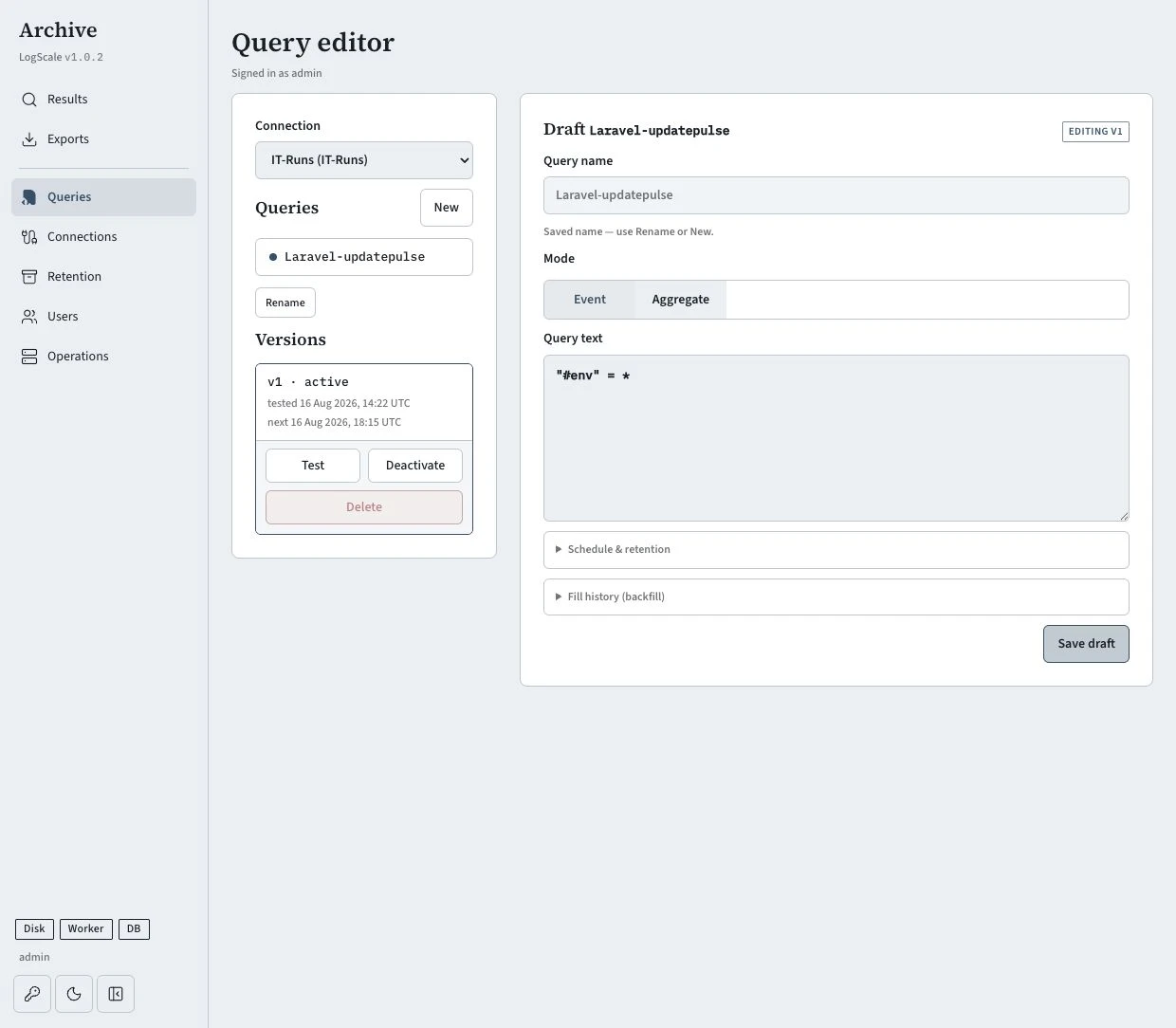
The worker now creates scheduled archive runs. Archive searches store data only; they do not run a live LogScale search when a viewer opens Results.
Verify it works
Wait for the first scheduled run, then open Results. Filter by the query or its time window. Stored generic events should appear there; use Exports for an asynchronous CSV or NDJSON file, and Operations to inspect run, backup, and storage status.
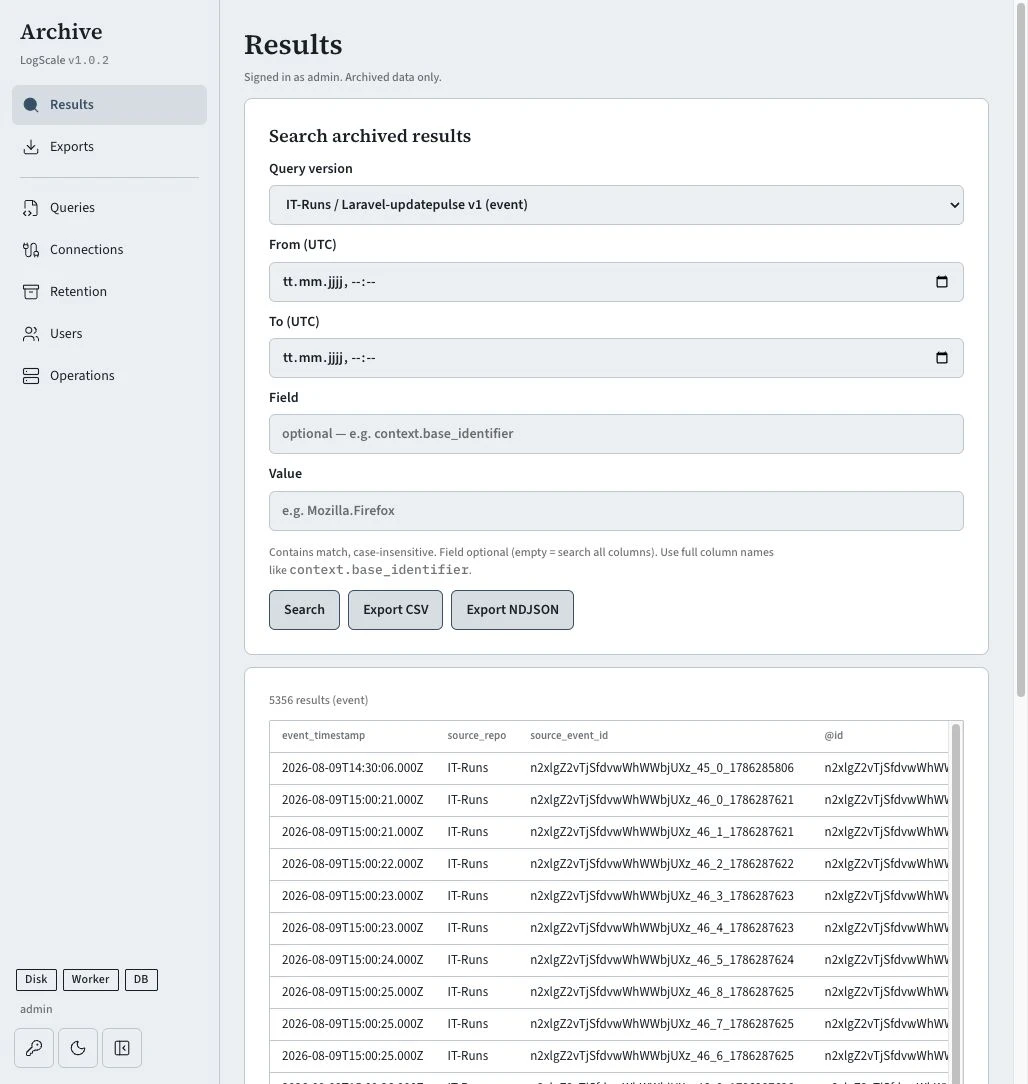
Expected: the count grows only after a completed worker run. If results remain empty, first check the query test and connection status. If the query test passes but a scheduled run fails, open Operations and inspect the failure reason before widening permissions or changing the query.
Troubleshooting
Sign-in keeps returning to the login page
SECURE_COOKIES=true with http://127.0.0.1:8080 prevents the browser from sending the session cookie. Use SECURE_COOKIES=false for local HTTP, restart the stack, and set it back to true when HTTPS is in front of Archive.
A saved connection fails after restart
Archive encrypts repository tokens with ENCRYPTION_KEY. If that value changes after you save the connection, Archive cannot decrypt the token. Restore the original key from your protected secret store, or create a new token and connection after confirming that the old connection is no longer needed.
You cannot find current data in Results
Results contains archived records, not a live LogScale view. Run and pass the query test, activate its version, then wait for a successful worker run. Check Operations for the exact run state.
Next step
Set a retention period per query version, then add a hold before deleting evidence required for an investigation. For the underlying decision, read How long should you keep audit logs?.
Sources
Version history
By default each save after the first publish creates a new version. Drafts stay on v1. Overwrites update the current version in place. Open any version to view or download it.